
 FA+
FA+ Shop
Shop
147
Views
Views
2
Favorites
Favorites
Category
Artwork (Traditional) / Portraits
Species Unspecified / Any
Size 1280 x 960
File Size 112.3 kB
Report this content
More from IndigoAngelCat


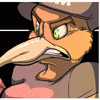
Crappy picture, I know... but at the same time, I like the way it came out with the rainbow and colors being fuzzy.
Badge done for starluna555 at Fur Fright 2009
Artwork by indigoangelcat
Badge done for
 starluna555 at Fur Fright 2009
Artwork by
 indigoangelcat
Category Artwork (Traditional) / Portraits
Species Unspecified / Any
Size 1280 x 960px
File Size 112.3 kB
Someday, I shall teach you the power of LEVELS in photoshop.
...Elements does have an "Auto Contrast" option under the "Enhance" toolbar. That (and the other "Auto"s) should do the trick most of the time...if not, Levels is under Enhance -> Adjust Brightness/Contrast -> Levels. Pull the triangle on the left towards the right until it is under the nearest (or largest) peak on the left - this darkens the image. Pull the triangle on the right towards the left until it is under the nearest (or largest) peak on the right - this brightens whites (like Tide!). Fiddle with it a bit, it's an easy learning curve.
...though it looks like you got some glare/reflection/movement curve in this photo, so I'm not sure how much it'll help.
Still, nifty badge for a nifty character!
...Elements does have an "Auto Contrast" option under the "Enhance" toolbar. That (and the other "Auto"s) should do the trick most of the time...if not, Levels is under Enhance -> Adjust Brightness/Contrast -> Levels. Pull the triangle on the left towards the right until it is under the nearest (or largest) peak on the left - this darkens the image. Pull the triangle on the right towards the left until it is under the nearest (or largest) peak on the right - this brightens whites (like Tide!). Fiddle with it a bit, it's an easy learning curve.
...though it looks like you got some glare/reflection/movement curve in this photo, so I'm not sure how much it'll help.
Still, nifty badge for a nifty character!


Comments