
 FA+
FA+ Shop
Shop
6301
Views
Views
334
Favorites
Favorites
Category
Artwork (Digital) / Macro / Micro
Species Digimon
Size 1200 x 857
File Size 927.1 kB
Report this content
★
More from Evil-Sprite


Listed in Folders


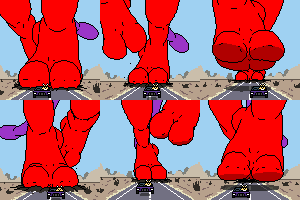
Big Hugs For Big Renamom
Happy Mother's Day to all the lovable moms out there!
Let her know that you love her, give her a big hug and if she happens to be a giantess, try to hugs the closest body part possible and don't let go! ;P
Remember though, Mother's Day is only one day but your love and affection should not be limited by that. No matter if mother, father, family or friends, you don't have to wait for a special day to show your love and support.
You can find this and other high resolution artworks of mine on my Patreon: https://www.patreon.com/evilsprite
Let her know that you love her, give her a big hug and if she happens to be a giantess, try to hugs the closest body part possible and don't let go! ;P
Remember though, Mother's Day is only one day but your love and affection should not be limited by that. No matter if mother, father, family or friends, you don't have to wait for a special day to show your love and support.
You can find this and other high resolution artworks of mine on my Patreon: https://www.patreon.com/evilsprite
Category Artwork (Digital) / Macro / Micro
Species Digimon
Size 1200 x 857px
File Size 927.1 kB
Listed in Folders





















Oh, were the two colors purple and white and did you drag it from the top corner to the bottom opposite corner?
I was able to find the pattern overlay. https://goo.gl/ESey8u
How do I change the color of the carpet texture?
I was able to find the pattern overlay. https://goo.gl/ESey8u
How do I change the color of the carpet texture?

Hi Evil-Sprite, would you please help me? I'm trying to recreate this background in Photoshop but I'm having a hard time.
I have the carpet overlay and I'm trying to transform the perspective by clicking Edit > Transform > Perspective like I did with the sky background you helped me with earlier this year. But when I stretch it out, the carpet doesn't change.
https://i.imgur.com/D2rNJMw.png
How do I change the perspective of it like you have it here? I also have a flat color layer above the pattern overlay and I lowered the opacity. I don't think it looks good though. What layer mode did you have your flat color on?
I have the carpet overlay and I'm trying to transform the perspective by clicking Edit > Transform > Perspective like I did with the sky background you helped me with earlier this year. But when I stretch it out, the carpet doesn't change.
https://i.imgur.com/D2rNJMw.png
How do I change the perspective of it like you have it here? I also have a flat color layer above the pattern overlay and I lowered the opacity. I don't think it looks good though. What layer mode did you have your flat color on?
I used the carpet texture as an overlay (about 20%) over the color layer.
Your carpet doesn't deform, since the pattern is an overlay effect on the layer, so it just lays the pattern on top of whatever is on that layer. If you want to deform it, you have to rasterize the layer style first. Right-click on the layer and choose "Rasterize Layer Style". This'll raster the effects onto the layer, basically merging the effects down to a simple picture, which then lets you transform them. This also means that you can't change anything about the pattern afterwards.
Your carpet doesn't deform, since the pattern is an overlay effect on the layer, so it just lays the pattern on top of whatever is on that layer. If you want to deform it, you have to rasterize the layer style first. Right-click on the layer and choose "Rasterize Layer Style". This'll raster the effects onto the layer, basically merging the effects down to a simple picture, which then lets you transform them. This also means that you can't change anything about the pattern afterwards.
Thank you for replying and for the useful information. I'm not sure what you mean in that first sentence but do you mean you put the opacity at 20% for the carpet texture? This is what I have: https://i.imgur.com/sE6lugs.png What am I doing wrong?
Did you change your carpet texture here or just used it how it is?
Also, my gradient background looks way off compared to yours. Yours looks darker on the left. I used the radial gradient and dragged it from the bottom left to the upper right.
Did you change your carpet texture here or just used it how it is?
Also, my gradient background looks way off compared to yours. Yours looks darker on the left. I used the radial gradient and dragged it from the bottom left to the upper right.
By that first sentence I meant that I set the layer mode of the carpet texture to overlay and the opacity to 20%.
I did not change the texture.
I used a radial gradient from the top right to the lower left. You just have to use the same colors as me, if you want it to look like that. You have the colors bright purple and white, what you want is bright purple and dark purple. The gradient uses your selected foreground and background colors in the lower left corner.
I did not change the texture.
I used a radial gradient from the top right to the lower left. You just have to use the same colors as me, if you want it to look like that. You have the colors bright purple and white, what you want is bright purple and dark purple. The gradient uses your selected foreground and background colors in the lower left corner.
Ah, that clears things up but am I supposed to change the opacity on both the color overlay and on the layer as well?
This is what I have so far: https://imgur.com/a/6T81LAo
I still think it's a bit off compared to yours, especially the carpet layer.
This is what I have so far: https://imgur.com/a/6T81LAo
I still think it's a bit off compared to yours, especially the carpet layer.
Oh! I thought you also changed the opacity on that color overlay window, that makes sense.
This is what I have now but I didn't bother shading the carpet, it's close enough for me though. https://i.imgur.com/jqIgnoy.png
I get the idea now. Thank you!
This is what I have now but I didn't bother shading the carpet, it's close enough for me though. https://i.imgur.com/jqIgnoy.png
I get the idea now. Thank you!


Comments